
What Is Linux?
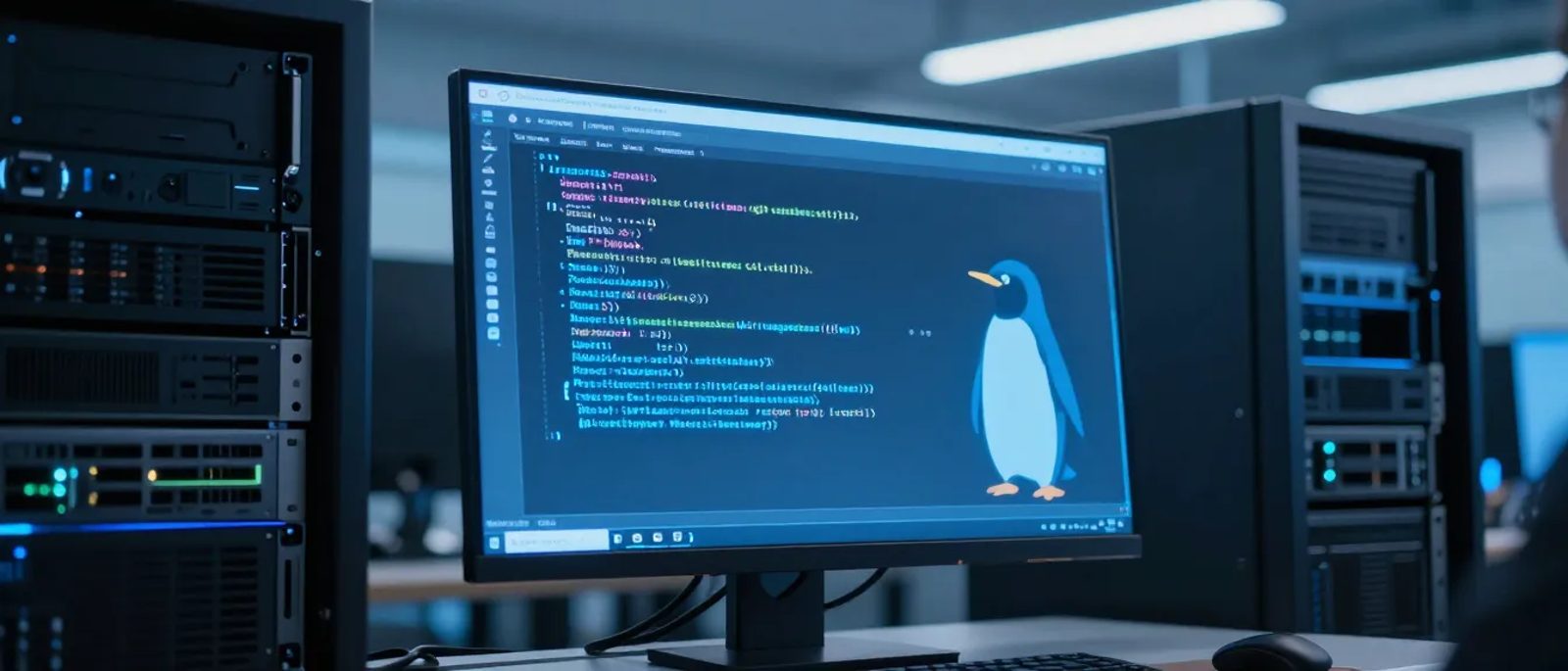
Linux is an operating system—the software that makes your computer work. Like Windows or macOS, but different.
Unlike Windows (which costs money) or macOS (which only runs on Apple hardware), Linux is free and runs on almost anything.
Here's the remarkable part: Linux powers the majority of the internet. Google, Facebook, Amazon, Netflix—their servers all run Linux. When you visit most websites, you're using Linux whether you know it or not.
According to W3Techs, Linux runs on over 96% of the world's top 1 million web servers. It's not a hobbyist curiosity. It's the professional choice for serious computing.
Why Small Businesses Should Care
It's Free
Windows Server licences cost £700 or more. Linux costs nothing.
For a small business running one server, that's £700 saved immediately. For businesses needing multiple servers or virtual machines, savings multiply quickly.
It's Reliable
Linux servers famously run for years without needing reboots. Uptime of 1,000+ days isn't unusual.
Windows servers typically need regular restarts for updates. Linux can apply most updates without downtime.
It's Secure
Linux has a strong security track record. The open-source model means thousands of developers review the code, finding and fixing vulnerabilities quickly.
The National Cyber Security Centre includes Linux in its guidance for secure system administration and doesn't consider it inherently less secure than commercial alternatives.
It's Lightweight
Linux runs well on modest hardware. An old computer that struggles with modern Windows can perform respectably with Linux.
This means:
- Longer hardware lifespan
- Lower electricity bills
- Ability to repurpose old equipment
It Has Excellent Software Availability
Most server software runs on Linux, often better than on Windows:
- Web servers (Apache, Nginx)
- Databases (MySQL, PostgreSQL)
- File sharing (Samba, Nextcloud)
- Email (Postfix, Dovecot)
- Containers (Docker)
The Different Types of Linux
Linux comes in 'distributions'—different versions packaged with different software and support options.
For small business servers, these are the main choices:
Ubuntu Server
Best for: First-time Linux users, general-purpose servers
- Most popular Linux distribution
- Excellent documentation and community support
- 5-year long-term support versions (LTS)
- Free to use, paid support available
Ubuntu is the default recommendation for most small businesses. It's well-documented, widely supported, and has the largest community.
Debian
Best for: Maximum stability, experienced users
- Very stable and conservative with updates
- Ubuntu is based on Debian
- Slightly less user-friendly but extremely reliable
- Free with community support
Debian is what you choose when stability matters above all else.
Rocky Linux / AlmaLinux
Best for: Enterprise compatibility, replacing CentOS
- Compatible with Red Hat Enterprise Linux (RHEL)
- Good for software that requires RHEL compatibility
- Free replacements for CentOS (which Red Hat ended)
- 10-year support lifecycle
If software vendors recommend RHEL, Rocky or Alma is the free equivalent.
What Linux Can Do for Your Business
File Server
Share files across your network without expensive Windows licences.
How: Install Samba (free software that speaks Windows file-sharing protocols). Windows computers connect normally—they don't know or care that the server runs Linux.
Cost comparison:
- Windows Server + CALs for 10 users: £1,500+
- Linux with Samba: £0
NAS Operating System
Run your own network storage with advanced features.
Options:
- TrueNAS (formerly FreeNAS): Full-featured, well-documented
- OpenMediaVault: Simpler, runs on lower-spec hardware
Both are free and turn any computer into a capable NAS.
Web Server
Host your own website, intranet, or web applications.
Standard stack:
- Linux operating system
- Apache or Nginx web server
- MySQL or PostgreSQL database
- PHP, Python, or Node.js for applications
This 'LAMP' or 'LEMP' stack powers millions of websites and costs nothing.
Docker Host
Run containerised applications easily.
Docker—the standard for running applications in containers—was built for Linux and runs best on Linux. Many modern business applications are designed to run in Docker containers.
VPN Server
Provide secure remote access for your team.
Options:
- WireGuard: Modern, fast, simple
- OpenVPN: Established, well-supported
Both are free and provide enterprise-grade VPN functionality.
Backup Server
Centralise backups from all your computers.
Tools like Restic, BorgBackup, or Bacula (all free) can back up Windows, Mac, and Linux computers to a central Linux server.
The Learning Curve — Be Honest
Linux is different from Windows. There's a learning curve.
What's different:
- Most administration is done via command line (typing commands)
- File paths use forward slashes, not backslashes
- Software installation works differently (package managers)
- Configuration files are plain text you edit manually
How steep is the curve?
- Basic tasks (file sharing, web serving): A few hours to learn
- Intermediate (databases, Docker): A few days
- Advanced (complex networking, security hardening): Ongoing learning
For someone comfortable with technology, setting up a basic Linux server is achievable with a weekend of learning. For complex setups, professional help is reasonable.
Getting Started — A Realistic Path
Option 1 — Virtual Machine Test
Try Linux without committing hardware.
1. Download VirtualBox (free) on your Windows/Mac computer
2. Download Ubuntu Server ISO from ubuntu.com
3. Create a virtual machine and install Ubuntu
4. Experiment without risk
This costs nothing and lets you learn before touching real systems.
Option 2 — Raspberry Pi Server
A £50 Raspberry Pi makes an excellent learning server.
- Low risk (cheap hardware)
- Real Linux experience
- Capable enough for basic file sharing or home automation
- Great for testing before deploying to real hardware
Option 3 — Old Computer Conversion
Repurpose an old computer as a Linux server.
- Install Ubuntu Server or Debian
- Use it for file sharing, backup, or testing
- Gives real-world experience with minimal cost
Option 4 — Cloud VPS for Learning
Rent a small Linux server online.
- DigitalOcean, Linode, or Vultr from £4-5/month
- Learn Linux administration remotely
- Delete when done—no hardware to store
Common Tasks — Quick Start Guides
Installing Ubuntu Server
1. Download the ISO from ubuntu.com
2. Create a bootable USB stick (use Rufus on Windows)
3. Boot from USB and follow the installer
4. Choose 'Ubuntu Server' (not desktop)
5. Set up a username and password
6. Apply default security updates
Installation takes about 20 minutes.
Basic Commands to Know
```
sudo apt update # Check for updates
sudo apt upgrade # Install updates
sudo apt install [name] # Install software
ls # List files
cd [folder] # Change directory
cp [source] [dest] # Copy file
mv [source] [dest] # Move file
nano [filename] # Edit text file
ip addr # Show network info
```
Setting Up File Sharing (Samba)
1. Install Samba: `sudo apt install samba`
2. Create a shared folder: `sudo mkdir /srv/share`
3. Set permissions: `sudo chmod 777 /srv/share`
4. Edit config: `sudo nano /etc/samba/smb.conf`
5. Add share definition at the end
6. Restart Samba: `sudo systemctl restart smbd`
Detailed guides are available at ubuntu.com/tutorials.
When to Get Help
Some tasks are DIY-friendly. Others benefit from professional help.
DIY-friendly:
- Basic file sharing
- Simple web serving
- Learning and experimentation
- Following well-documented tutorials
Consider professional help for:
- Complex networking
- Security-critical systems
- Integration with existing infrastructure
- Anything business-critical
Local IT consultants often have Linux experience. Expect £50-100/hour for setup work.
Support Options
Linux support comes in different forms:
Community support (free):
- Documentation (excellent for Ubuntu)
- Forums (Ask Ubuntu, Stack Overflow)
- Reddit (r/linuxadmin, r/homelab)
- YouTube tutorials
Paid support:
- Canonical (Ubuntu): Enterprise support from £150/year per server
- Red Hat: Full commercial support (expensive, enterprise-focused)
- Local consultants: Pay-as-needed support
For most small businesses, community support plus occasional paid consulting works well.
Common Concerns Addressed
"My staff don't know Linux"
They don't need to. A Linux file server appears as a normal network drive to Windows users. Web applications run in browsers regardless of what's behind them. Users often never know.
"What if something goes wrong?"
Same as any IT: good backups, documentation, and a support plan. Linux problems are well-documented online. The community is helpful. Professional support is available.
"Isn't Linux for experts?"
Linux can be complex, but so can Windows Server properly configured. For standard tasks like file sharing, the complexity is manageable. Many small business owners successfully run Linux servers with weekend learning and occasional consultation.
"Will my software run on Linux?"
Depends on the software. Most server software runs on Linux (often better than Windows). Desktop applications are different—Microsoft Office doesn't run on Linux directly. But for server tasks, Linux often has better software options.
The Bottom Line
Linux isn't for everyone. But for small businesses wanting to:
- Reduce software licensing costs
- Run servers reliably and securely
- Make use of older hardware
- Take more control of their infrastructure
...Linux is worth serious consideration.
The learning curve is real but not insurmountable. The savings are significant. The software is mature and professional.
Start small. Try it in a virtual machine or on a Raspberry Pi. See if it fits your needs and comfort level. Many people who try Linux for one task end up using it for much more.
The price is right—it's free. The only cost is your time to learn.