
What Is a Server, Really?
Let's start simple. A server is just a computer that shares stuff with other computers.
When you save a file to a shared folder that everyone in the office can access—that folder lives on a server. When you visit a website, that website lives on a server. When you send an email, servers handle it.
Servers aren't magic. They're just computers with a specific job: storing things and sharing them.
Do You Actually Need One?
Here's the honest answer: most small businesses with under 10 people don't need their own server anymore.
Ten years ago, you needed a server to share files, run email, and back up your work. Today, cloud services do all of this cheaper and easier.
You probably DON'T need a server if:
- You have fewer than 10 people
- You mainly use normal office software (Word, Excel, email)
- Everyone has decent internet at home and work
- You don't run specialist software that needs local hosting
You might NEED a server if:
- You run software that only works on local networks (some accounting or design software)
- You handle huge files that would be slow to upload/download (video production, large datasets)
- You have strict rules about where data must be stored (some industries require UK-only storage)
- Your internet is unreliable and you can't depend on cloud services
According to the Federation of Small Businesses, 67% of UK small businesses now use cloud services for file storage. Most have moved away from on-site servers entirely.
The Cloud Alternative (Usually Better)
Before buying a server, consider whether cloud services would work:
For file sharing:
- Microsoft OneDrive (included with Microsoft 365, from £4.90/user/month)
- Google Drive (included with Google Workspace, from £5.20/user/month)
- Dropbox Business (from £10/user/month)
These give you shared folders everyone can access, automatic backup, and access from anywhere. For a team of 5, you'd pay about £25-50/month—less than running your own server.
For email:
- Microsoft 365 or Google Workspace (same prices as above)
- Both include professional email with your business name
For backup:
- Cloud storage handles this automatically
- No tapes, no external hard drives, no forgetting to do it
The UK's National Cyber Security Centre recommends cloud backup for small businesses because it's more reliable than most on-site solutions.
If You Do Need a Server — Your Options
Still need local storage? Here are your choices, from cheapest to most expensive.
Option 1 — A NAS Box (£200-800)
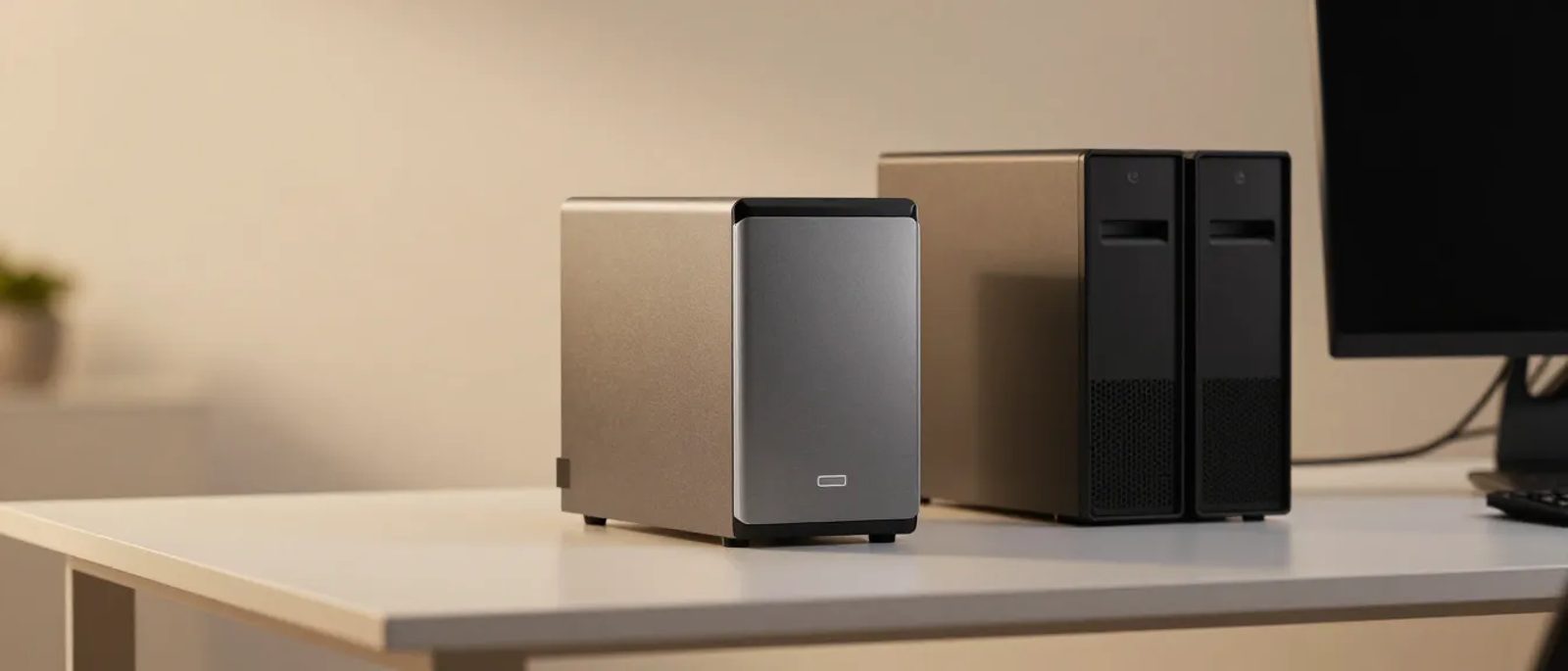
NAS stands for Network Attached Storage. It's a small box with hard drives that plugs into your office router.
What it does:
- Gives everyone a shared folder to save files
- Backs up automatically to a second drive
- Some can back up to the cloud too
Good choices:
- Synology DS220+ (around £300 without drives)
- QNAP TS-230 (around £200 without drives)
- Add 2 x 4TB drives for another £150-200
Total cost: £350-500 for a basic setup
Good for: Small teams needing shared file storage, basic backup, or working with large files locally.
Not good for: Running business software, email hosting, or anything needing real computing power.
Option 2 — A Mini Server (£500-1,500)
A step up from a NAS. This is a small, quiet computer that sits in your office.
What it does:
- Everything a NAS does, plus
- Can run Windows or Linux
- Can host simple business software
- More powerful for handling multiple users
Good choices:
- HP ProLiant MicroServer (around £600)
- Lenovo ThinkCentre Tiny (around £500)
- Dell PowerEdge T40 (around £700)
Good for: Running local software that needs a server, handling bigger workloads, or when you need more control.
Option 3 — A Proper Server (£1,500+)
A full-size server in a rack or tower case. This is what bigger businesses use.
When you need this:
- Running multiple business applications
- Hosting databases
- Supporting 20+ users
- Needing high reliability and redundancy
Reality check: If you have under 10 people, you almost certainly don't need this. The cost (equipment, setup, maintenance, electricity) rarely makes sense.
Setting It Up (The Easy Way)
If you go with a NAS or mini server, setup is simpler than you'd think.
NAS setup:
1. Plug the NAS into your router
2. Install the drives (they slot in, no tools needed)
3. Use the maker's app to set it up (Synology and QNAP have good apps)
4. Create shared folders and user accounts
5. Map the folders on everyone's computers
Most people can do this in an afternoon. Synology and QNAP both have step-by-step guides with pictures.
Mini server setup:
This is trickier. You'll need to:
1. Install an operating system (Windows Server costs extra; Linux is free)
2. Configure networking
3. Set up user accounts and permissions
4. Install any software you need
Unless someone on your team is comfortable with this, pay an IT person for a few hours. Expect to pay £50-100/hour for setup help.
The Ongoing Costs Nobody Mentions
A server isn't just a one-off purchase. Factor in:
Electricity: A NAS uses about £30-50/year. A mini server uses £50-100/year. A full server can use £200-400/year.
Replacement drives: Hard drives fail. Budget for replacing one every 2-3 years (£50-100 each).
Backup: You still need off-site backup in case of fire or theft. Cloud backup for a NAS costs about £50-100/year.
Support: When something breaks, you either fix it yourself or pay someone. IT support typically costs £50-100/hour.
Replacement: Servers last 3-5 years typically. Plan to replace eventually.
For a NAS serving a team of 5, expect ongoing costs of about £150-200/year on top of the purchase price.
Security — Don't Skip This
A server in your office is a target. According to the UK government's Cyber Security Breaches Survey, 32% of businesses experienced an attack last year.
Basic security steps:
1. Keep it updated. Apply security patches when prompted.
2. Use strong passwords. At least 12 characters, different for each account.
3. Turn on the firewall. Both on the server and your router.
4. Limit access. Only give people access to what they need.
5. Back up off-site. If ransomware hits or the office floods, you need copies somewhere else.
The National Cyber Security Centre offers free guidance specifically for small businesses at ncsc.gov.uk.
What Most Small Teams Should Do
Here's the practical advice for teams under 10:
If you're starting fresh:
Don't buy a server. Use Microsoft 365 or Google Workspace for email and files. It's cheaper, easier, and more reliable.
If you have specialist software that needs local hosting:
Get a NAS for file sharing and run the software on a decent desktop PC. This hybrid approach is often the cheapest.
If you handle huge files (video, design, engineering):
A NAS makes sense for fast local access. But still use cloud backup.
If you're worried about data being "in the cloud":
Understand that major cloud providers (Microsoft, Google) spend billions on security. Your data is probably safer with them than on a server in your office cupboard.
Questions to Ask Before Buying
1. What problem am I actually solving? Be specific.
2. Could cloud services solve this problem instead? Usually yes.
3. Who will look after this server? It needs ongoing attention.
4. What happens when it breaks? How quickly can you get help?
5. What's my total cost over 5 years? Include electricity, drives, backup, support.
The Bottom Line
For most small businesses, the answer to "do I need a server?" is no. Cloud services are cheaper, more reliable, and don't need looking after.
If you do need local storage—for large files, specialist software, or compliance reasons—a NAS box in the £300-500 range handles most needs.
Full servers make sense for bigger businesses with IT staff. For a team of 10 or fewer, they're usually overkill.
When in doubt, start with cloud services. You can always add local storage later if you need it. Going the other way (migrating off a server to cloud) is much harder.