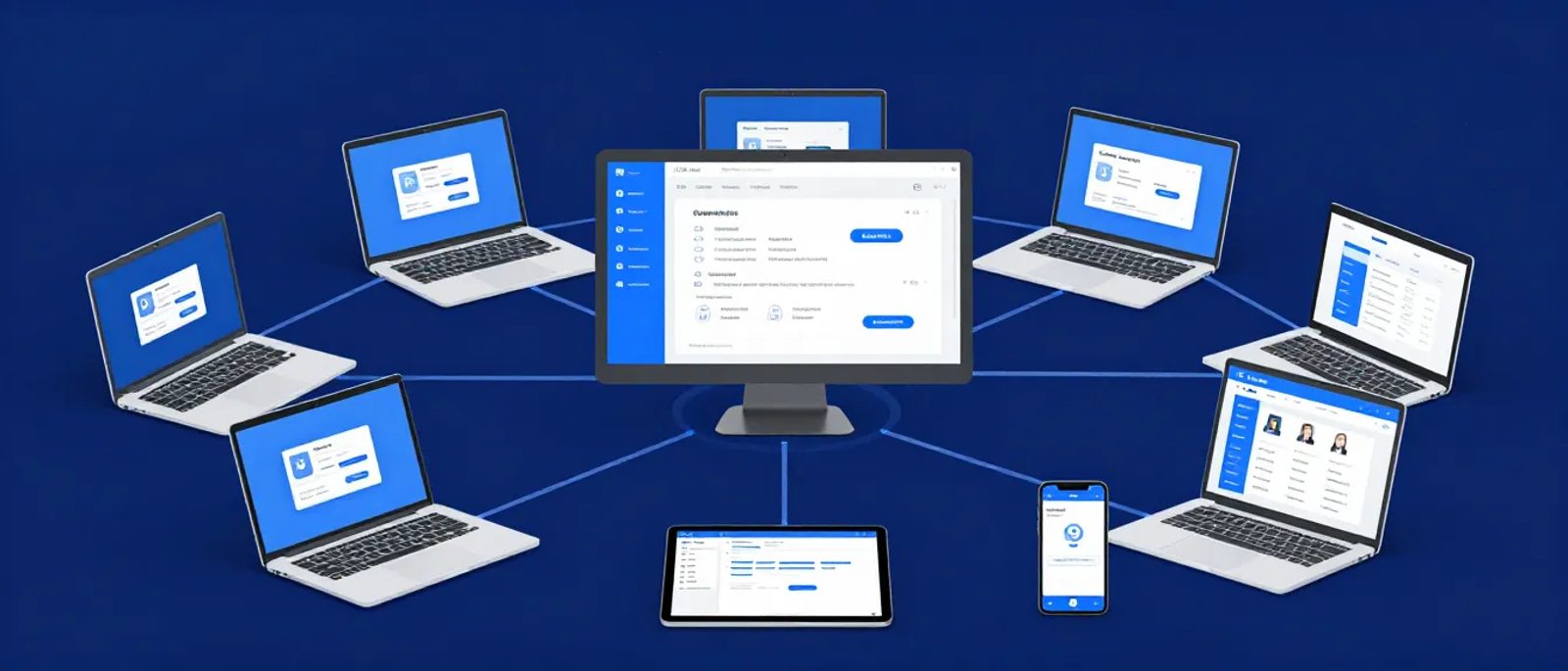

Why Device Management Matters
When everyone worked in the office on company desktop PCs, security was simpler. Now your data lives on:
- Laptops that travel home
- Personal phones checking work email
- Tablets used at client sites
- Home computers for remote work
Device management (MDM/EMM) helps you:
- Enforce security policies: Require passwords, encryption, updates
- Protect company data: Remote wipe if lost/stolen
- Manage applications: Control which apps access work data
- Stay compliant: Meet security standards and regulations
- Support remote work: Configure devices without physical access
What Is Microsoft Intune?
Intune is Microsoft's cloud-based device management service. It's included with:
- Microsoft 365 Business Premium (£18.70/user/month)
- Enterprise Mobility + Security E3/E5
- Standalone Intune subscription (£6/user/month)
If you have Business Premium, you already have Intune—most businesses just haven't turned it on.
What Intune Can Manage
| Device Type | Management Level |
|---|---|
| Windows 10/11 | Full (company-owned), App protection (personal) |
| macOS | Full (company-owned), Limited app protection |
| iOS/iPadOS | Full or app-only |
| Android | Full or app-only |
| Linux | Limited |
Two Approaches: Full Management vs App Protection
Full Device Management (MDM)
What it is: Complete control over the device—settings, apps, updates, security.
Best for: Company-owned devices, employees who consent to manage personal devices.
What you can do:
- Enforce encryption
- Require PIN/password
- Control which apps can install
- Push company apps automatically
- Remote wipe entirely
- Configure Wi-Fi and VPN automatically
Limitations: Users must enroll devices, consent to management.
App Protection Policies (MAM)
What it is: Protects company data within specific apps, without managing the whole device.
Best for: Personal devices (BYOD), users uncomfortable with full management.
What you can do:
- Require PIN to open work apps
- Prevent copy/paste from work to personal apps
- Block screenshots in work apps
- Wipe only work data (personal data stays)
- Require device security checks
Limitations: Less control, only works with supported apps (Outlook, Teams, Office).
Practical Recommendation
| Scenario | Approach |
|---|---|
| Company-owned laptops | Full MDM |
| Company-owned phones | Full MDM |
| Personal phones accessing email | App protection |
| Personal laptops (occasional use) | App protection |
| Contractors/temps | App protection |
Getting Started with Intune
Prerequisites
1. Microsoft 365 Business Premium (or Intune license)
2. Azure AD (included with Microsoft 365)
3. Global admin access to configure
Step 1: Enable Intune
1. Go to Microsoft 365 Admin Centre → Setup
2. Look for "Secure your organization" or "Device management"
3. Or go directly to endpoint.microsoft.com (Intune admin centre)
Step 2: Set Up Auto-Enrollment (Windows)
For company-owned Windows devices to auto-enroll when users sign in:
1. Intune admin centre → Devices → Enroll devices → Automatic Enrollment
2. Set MDM user scope to "All" or select groups
3. Devices auto-enroll when users sign in with work account
Step 3: Create a Compliance Policy
Compliance policies define minimum security requirements:
1. Devices → Compliance policies → Create Policy
2. Choose platform (Windows, iOS, Android, macOS)
3. Set requirements:
- Require encryption
- Minimum password length
- Require up-to-date OS
- Require antivirus (Windows)
Recommended Windows compliance settings:
- Require BitLocker: Yes
- Require password: Yes
- Minimum password length: 8 characters
- Require antivirus/antispyware: Yes
- Firewall: Required
Step 4: Create a Configuration Profile
Configuration profiles push settings to devices:
1. Devices → Configuration profiles → Create profile
2. Choose platform and profile type
3. Configure settings
Essential Windows settings to configure:
- BitLocker encryption (enable automatically)
- Windows Hello for Business (PIN/biometric login)
- Microsoft Defender settings
- Windows Update settings
- Firewall configuration
Step 5: Set Up App Protection (For BYOD)
Protect work data on personal devices:
1. Apps → App protection policies → Create policy
2. Choose platform (iOS/Android)
3. Select apps to protect (Outlook, Teams, OneDrive, Office apps)
4. Configure data protection:
- Prevent "Save As" to personal storage
- Require PIN to access apps
- Block copy to unmanaged apps
- Encrypt app data
Security Baselines: The Quick Win
Microsoft provides pre-configured "security baselines"—best-practice settings tested and recommended:
1. Endpoint security → Security baselines
2. Choose baseline (Windows 10/11, Edge, Defender)
3. Create profile and assign to devices
What baselines configure:
- Password policies
- Lock screen settings
- Browser security
- Defender settings
- Network protection
- Attack surface reduction
For most small businesses, applying security baselines with minimal modification is the fastest path to good security.
Conditional Access: Adding Intelligence
Conditional access goes beyond "allow or deny" to context-aware decisions:
Example policies:
1. "Require MFA when accessing from outside the office"
2. "Block access from non-compliant devices"
3. "Require managed app on mobile devices"
4. "Block access from risky sign-ins"
Setting Up Basic Conditional Access
1. Azure AD → Security → Conditional Access → New policy
2. Users: All users (or specific groups)
3. Cloud apps: All cloud apps (or Microsoft 365)
4. Conditions: Device platforms, locations, risk levels
5. Grant: Require compliant device, or require app protection
Essential policy for small business:
- Name: "Require compliant device for company apps"
- Users: All users
- Apps: Office 365
- Grant: Require device to be marked compliant
- This ensures only devices meeting your compliance policy can access data.
Common Scenarios
Scenario 1: Lost Laptop
1. Intune admin centre → Devices → Find the device
2. Remote actions → Wipe (full wipe) or Retire (remove company data)
3. Device is wiped on next internet connection
4. BitLocker encryption means data is protected even before wipe
Scenario 2: Employee Leaves
1. Disable Azure AD account (standard offboarding)
2. Retire device from Intune (removes company data)
3. Or Wipe device if company-owned
4. Personal apps and data stay (if BYOD with app protection)
Scenario 3: New Employee Starts
1. Give them a company laptop
2. They sign in with their new Microsoft 365 account
3. Device auto-enrolls in Intune
4. Policies apply automatically
5. Company apps install automatically
Scenario 4: Employee Uses Personal Phone for Email
1. They install Outlook from app store
2. Sign in with work account
3. App protection policy applies automatically
4. Work data is protected in Outlook
5. Personal device stays personal—no full management needed
Alternatives to Intune
If you're not on Microsoft 365 Business Premium:
Jamf (macOS/iOS)
Best for: Apple-focused businesses
Pricing: From £3/device/month
Pros: Best-in-class Apple management
Cons: Windows/Android requires separate solution
Google Endpoint Management
Best for: Google Workspace users
Pricing: Included with Google Workspace
Pros: Integrated with Google ecosystem
Cons: Less powerful than Intune
JumpCloud
Best for: Cross-platform, cloud-native businesses
Pricing: From £8/user/month
Pros: Directory + device management combined
Cons: Less deep than platform-specific tools
Kandji (macOS/iOS)
Best for: Mac-heavy environments
Pricing: From £5/device/month
Pros: Modern, automated Apple management
Cons: Apple only
Getting It Right: Best Practices
Start Simple
Don't try to configure everything at once:
1. Week 1: Basic compliance policy (encryption, passwords)
2. Week 2: Security baselines for Windows
3. Week 3: App protection for mobile
4. Week 4: Conditional access basics
5. Ongoing: Refine and expand
Test Before Deploying
1. Create a test group with a few volunteer devices
2. Apply policies to test group first
3. Verify everything works correctly
4. Expand to full organisation
Communicate With Staff
Device management can feel intrusive. Explain:
- What you're protecting (company data)
- What you can see (device compliance, not personal photos)
- What you can do (remote wipe work data)
- What you can't do (read personal messages)
Have a BYOD Policy
If allowing personal devices, document:
- What's required (app protection enrollment)
- What's protected (work data only)
- What's visible to IT
- What happens when they leave
- Minimum device requirements
Authority Resources
- Microsoft Intune Documentation: docs.microsoft.com/mem/intune
- Microsoft Security Baselines: docs.microsoft.com/windows/security/threat-protection/windows-security-baselines
- NCSC End User Device Security: ncsc.gov.uk/collection/end-user-device-security
- NCSC BYOD Guidance: ncsc.gov.uk/collection/device-security-guidance/bring-your-own-device
Your Intune Setup Checklist
Preparation
- [ ] Confirmed Microsoft 365 Business Premium license (or Intune)
- [ ] Identified which devices to manage
- [ ] Decided on full management vs app protection approach
- [ ] Created test group of pilot users
Basic Setup
- [ ] Enabled automatic enrollment
- [ ] Created compliance policy
- [ ] Applied security baseline
- [ ] Set up app protection policy for mobile
Security Enhancement
- [ ] Configured conditional access policy
- [ ] Enabled BitLocker enforcement
- [ ] Set up Windows Update policies
- [ ] Configured Defender settings
Operational
- [ ] Documented procedures (lost device, offboarding)
- [ ] Communicated policy to staff
- [ ] Tested remote wipe procedures
- [ ] Set up compliance reporting
Getting Started This Week
Day 1: Verify you have the right licenses, access Intune admin centre
Day 2: Create a basic compliance policy, test on one device
Day 3: Apply Windows security baseline to test group
Day 4: Set up app protection policy for iOS/Android
Day 5: Create conditional access policy requiring compliance
Week 2: Expand to all users, document procedures
Device management doesn't need to be complex. Start with the basics—encryption, passwords, updates—and build from there. Intune makes enterprise-grade security accessible to small businesses, and if you have Business Premium, you're already paying for it.